
Connecting WhatsApp
There are two ways to connect WhatsApp, and they differ in substance, not in looks. Choose before you start: switching later means connecting again from scratch.
Which route?
| Ordinary WhatsApp — linked device | Official WhatsApp API | |
|---|---|---|
| The number | Your current number, as it is | A business number registered with Meta |
| Time to connect | One minute | An hour to several days (Meta verification) |
| Reply whenever you like | Yes | Only within 24 hours of the customer's last message |
| After 24 hours | No restriction | A template pre-approved by Meta |
| Requires | Nothing | A verified Meta Business account + billing with Meta |
| Stops if | Your phone is off for long, or the device is unlinked | It does not stop |
| Official | No — the number can be banned | Yes |
This route uses an interface WhatsApp does not recognise. They do not block it, but they do not protect you either: if your sending pattern starts to look like bulk messaging, or enough customers press Block or Report, your number can be banned permanently and without notice — taking your WhatsApp message archive with it. (What is inside the platform stays.)
What lowers the risk: never message a number that has not messaged you first, never send one text to a large list at once, and keep your sending rhythm close to that of a person typing.
What removes the risk: the official route. A banned number is not recovered.
Start with the linked device so you see the system working today, and move to the official route before WhatsApp becomes your main channel — not after.
Route one — linked device (QR)
Open Integrations from the sidebar. All your channels sit in one grid, with each card showing its own status.
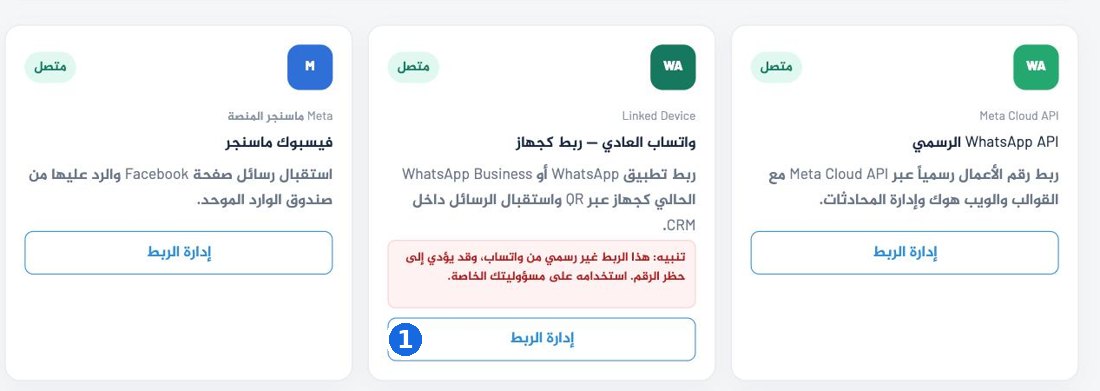
- 1The Ordinary WhatsApp — linked device card → press Manage connection
The connection dialog opens:
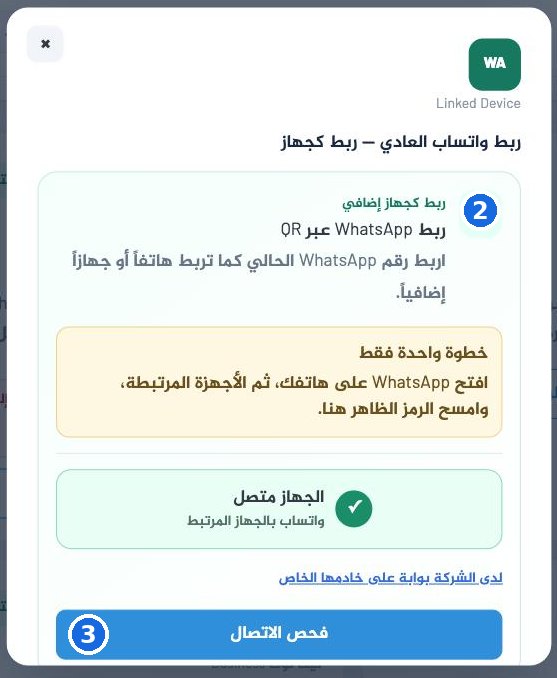
- 2The QR code appears here when no device is linked. In this capture a device was already connected, so the number name shows instead.
- 3The button changes with state: Show QR code → Refresh QR code → Check connection
- Press Show QR code and wait for the code to appear.
- On your phone: open WhatsApp → Settings → Linked devices → Link a device.
- Point the camera at the code on your screen.
- Device connected appears along with the number's name. Done.
Press This company has a gateway on its own server and enter the gateway URL and key. The key is stored encrypted and is used for your company alone.
If it does not work
The code never appears and it keeps saying "preparing…"
The gateway is starting a new session. Wait half a minute, then press Refresh QR code. If it keeps happening, the fault is on our side, not yours — write to us.
The phone says the code is invalid
The code refreshes roughly every minute. Press Refresh QR code and scan the new one immediately.
A "connection expired" banner appeared later
The device was unlinked. Three causes: you signed out of WhatsApp on the phone, the phone was offline for a long time, or the device was removed from Linked devices.
One fix: scan again from step one.
Messages that arrived during the outage do not come back. This is why this route alone is not a long-term foundation.
Messages arrive but your replies do not go out
Your phone is offline, or the device was just unlinked. Check Linked devices on the phone first.
Route two — the official WhatsApp API
- Integrations → the Official WhatsApp API card → Manage connection.
- Press Continue with Facebook.
- Sign in, then choose in order: the Meta business, the WhatsApp Business account, the number.
- You return to the platform and the connection is done.
The Meta Business account must be verified, and the number must not be in use in the WhatsApp or WhatsApp Business app on any phone. A number that works on your phone right now will not qualify until you remove it from the app.
It says "waiting for ITC's central Meta app to be activated"
This is not your problem and you cannot fix it from your account. Write to us.
Advanced manual connection
If you already hold your Meta credentials: press Advanced: manual connection and enter the WABA ID, Phone Number ID and access token.
We do not need it and we never ask for it. Any page asking you for it is not ours.
The 24-hour window — the thing to understand
The official route does not allow free text more than 24 hours after the customer's last message. After that you send a template pre-approved by Meta. Templates live in Integrations → WhatsApp templates, and approval takes minutes to a day.
The AI auto-reply stays silent on purpose outside the window rather than sending text Meta would reject.
After connecting — check it yourself
Send a message from another number to your company number. It should appear in your Inbox within seconds. If it does not, the connection did not complete, whatever the screen says.