Connecting Instagram Direct
Connects a professional Instagram account so Direct messages arrive in the unified inbox.
The condition that stops most attempts
A personal account cannot be connected at all — and there is no trick around it, because the interface itself cannot see it.
To switch: the Instagram app → Settings → Account type and tools → Switch to professional account. It is free and changes neither your followers nor your posts.
Steps
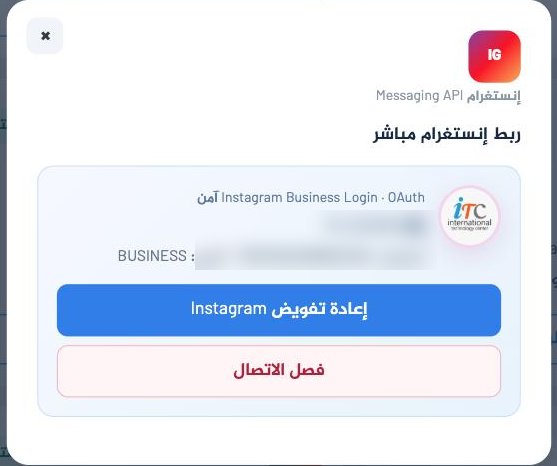
- Integrations → the Instagram Direct card → Manage connection.
- Press Continue with Instagram.
- Sign in with the Instagram account itself and approve the permissions.
- You return to the platform and the account handle and type appear. Done.
If it does not work
Connected, but no messages arrive
Instagram keeps a separate switch that lets outside tools read messages. In the app: Settings → Messages and story replies → Connected tools → turn on Allow access to messages. Without it the connection looks successful and nothing arrives.
"Waiting for the platform's central Instagram app"
A setting on our side, not yours. Write to us.
Messages stopped after weeks of working
The authorisation expired. Press Re-authorise Instagram.
Comments on posts and story replies are not Direct messages and Meta treats them differently. What reaches the inbox is direct conversations.